About TopView Pushover Notifications
March 12, 2026
TopView and SMS Notification
SMS (text messaging) is a popular notification method among our customers. However, it typically requires either an on-site cellular modem or a pay-per-message account with a cloud SMS provider (for example, Twilio).
Email-to-SMS through cellular carriers was previously a convenient free alternative. Unfortunately, most carriers have either phased out support for this feature or converted it to a paid service. (Pushover also supports email-to-message, which is described later in this article.)
In early 2024, with the release of TopView v7.2, support for Pushover notifications was added. Pushover provides a robust notification solution that is similar to SMS but can be implemented quickly and at low cost.
About Pushover

Pushover is an application that allows users to receive and acknowledge notification messages.
The Pushover app supports:
- Android
- iPhone and iPad
- Desktop systems
- Android Wear and Apple Watch
When used on a mobile device, the experience is similar to SMS or other messaging applications such as WhatsApp or Facebook Messenger.
By default, the Pushover app does nothing until you link a notification source (such as TopView) to your Pushover account. Using the Pushover API and your unique user key, TopView can send notification messages directly to your device.

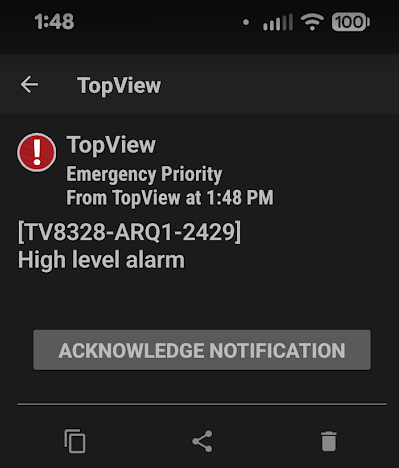
Pushover notification appearing on a mobile device
Pushover pricing
As of the time of writing, Pushover offers the following options:
- Create a free account for 30 days
- Create individual user accounts for a one-time fee of $4.99 USD per account. TopView can send 10K messages/month for free.
- Create a Team account with central management for each user for $5 USD per-user, per-month. TopView can send 25K messages/month for free.
View the latest Pushover pricing information…
Pushover vs SMS
Mobile application:
- SMS: Uses your phone’s SMS app which may contain other, non-TopView messages
- Pushover: Uses the Pushover app, keeping TopView notifications separate from SMS messages
Sending messages:
- SMS: Requires an on-site cellular modem with a SIM card and cellular service, or a hosted SMS service (such as Twilio)
- Pushover: • Sends messages to the Pushover servers using the Pushover API (this functionality is built directly into TopView)
Acknowledge:
- SMS: copy the received message, paste into a reply message, send the reply message
- Pushover: Press the Acknowledge button that appears in the message
Configuring TopView to send Pushover messages
Users can quickly configure TopView to send notification messages to Pushover users.
If you would like to test TopView and Pushover, you can create a free Pushover account.
Note:
- The TopView installation includes a Pushover configuration document with more details. This document can be accessed from the TopView Configurator: Help > Notification hardware and services
- The TopView machine must be able to reach the Pushover API server to send messages. The current URL for the API is https://api.pushover.net/1/messages.json
Pushover account:
- Create an account. The account will be assigned a user key
- Create an application for TopView and an create an application API token
TopView:
- Configure TopView Messaging for Pushover by entering the TopView application token that you created in Pushover

- Optional: enable alarm acknowledgment for recipients of Pushover messages
- Make sure the option “Query the status of Pushover messages…” is enabled. This allows TopView to use the API to query the acknowledge state of sent messages without requiring the acknowledge action to send a separate message back to TopView.
- For each Pushover recipient, enter their user token in the TopView Contact “msg” field
- Configure a Notification Group that includes Pushover recipients (\Contactname\msg)
- Assign the Notification Group to the alarms that you would like the Pushover users to receive
Alternative send method: Email to Pushover message
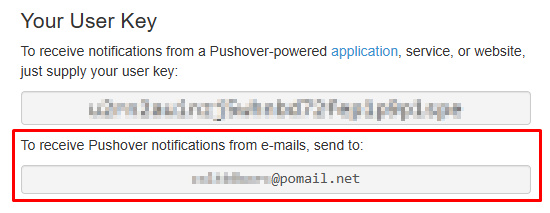
Each Pushover account is also assigned a unique Pushover email address. Sending an alarm notification email from TopView to this address will send a message to your Pushover app. Although this method is easy to use, it does not allow users to acknowledge the message and TopView alarm directly from the Pushover message.
Using the Pushover app to view and acknowledge TopView alarms
The mobile device will display notifications for incoming Pushover messages.
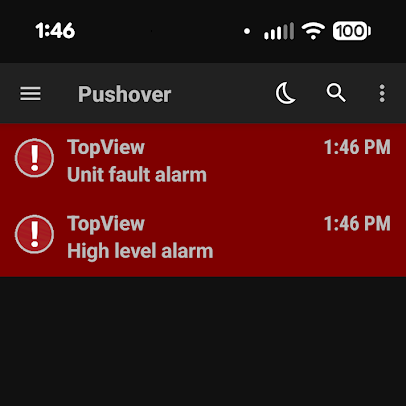
The Pushover app will list received TopView alarm notification messages:
Selecting a message will show the message details. If alarm acknowledge is enabled, the user can press the [Acknowledge Notification] button to acknowledge the message. This will also acknowledge the corresponding alarm in TopView.