

OPC Connection Issues
Upcoming DCOM Security changes (KB5004442) may affect OPC client connections to remote OPC Servers. A patch is available for Exele OPC clients TopView and OPCcalc.
Exele OPC Products
We started providing the information below to assist our customers with OPC connection problems. Once you have fixed your OPC connection issues, please come back and learn more about our OPC software products:

Learn More about TopView, Exele’s Alarm Management & Notification, and Remote Monitoring Software.

Try OPCcalc, Exele’s Advanced Calculation Engine for OPC
Fixing OPC Connection Issues
If you cannot connect to your running OPC Server or have problems reading or writing tag values, you may need to adjust the DCOM settings on your computer (the OPC Client) or the OPC Server Computer. The information below gives step-by-step information on how you can make the required DCOM changes.
- We cannot guarantee that the information below will fix your connection issues. We are providing this information based on our experience of “what works” when diagnosing and fixing OPC connection problems.
- The information below is copyrighted by Exele Information Systems, Inc. and may only be reproduced with permission from Exele. You may print the information for your own use.
- In addition to the information provided below, the OPC Training Institute has a few resources you may want to investigate:


- OPC & DCOM: 5 Things you need to know (Introduction)
- OPC Rescue enables users to easily diagnose communication and security problems, and repair them instantly with the push of a button. All this can be done without ever having to learn to configure DCOM.
OPC Core Components – compatible version
The OPC Core Components from the OPC Foundation are used by client and server OPC products.
The OPC Core Components consist of both 32 and 64 bit components. Some versions of the 32 and 64 bit components are not compatible with each other. Since an OPC product may distribute 32, 64, or both 32 and 64 bit components it may be the case that the current installed versions (32/64 bit) are not compatible.
A good first step to fixing OPC issues is to ensure that you have the correct version of the OPC Core Components installed.
Steps:
- Stop all OPC products including the OPCENUM Service
- Remove any installed OPC Core Components (use Control Panel…Programs and Features)
- Download and install the latest version of the OPC Core Components.
Note: the installation says “64 bit” but it will install both 32 and 64 bit components
DCOM Logging
Before adjusting DCOM settings, you may want to turn on DCOM debugging to get specific information on the exact DCOM error that is occurring. You can also read about DCOM logging in this Microsoft knowledgebase article.
You can enable error logging by changing the registry and then restarting the DCOM process (the Exele OPC Client) that you want to examine. The DCOM process that you want to examine determines whether you have to restart the computer.
To turn on DCOM error logging, follow these steps:
- Click Start, click Run, type regedit, and then click OK.
- Locate the HKEY_LOCAL_MACHINESOFTWAREMicrosoftOle registry subkey.
- Right-click the Ole value, point to New, and then click DWORD Value.
- Type ActivationFailureLoggingLevel, and then press ENTER. Double-click ActivationFailureLoggingLevel, type 1 in the Value data box, and then click OK.
- Right-click the Ole value, point to New, and then click DWORD Value.
- Type CallFailureLoggingLevel, and then press ENTER. Double-click CallFailureLoggingLevel, type 1 in the Value data box, and then click OK.
- Restart the DCOM program, and then examine the System log and the Application log for DCOM errors (Event Viewer). The error messages in the Windows event log contain information that you can use to help resolve the permissions issue.
You can turn off DCOM error logging by changing the ActivationFailureLoggingLevel value and the CallFailureLoggingLevel value to zero.
DCOM and OPC
Background
OPC Clients (such as Exele’s TopView OPC and OPCcalc) and OPC Servers communicate using DCOM. When the two parts (the client and server) are on the same computer, the DCOM permissions are different than if the two parts are on separate computers. A typical scenario is that the OPC client product works fine if it is installed on the OPC Server computer, but if the client is installed on a separate computer, the client no longer works properly (cannot browse, cannot connect).
Server computer: the computer running the OPC Server
Client computer: the computer running the OPC Client (Exele’s TopView or OPCcalc software)
Users and Groups
The first thing you need to know is the “user” that is running the OPC client application. If you are running the OPC client as the logged on user, the user is the logged on user account (unless you specifically “run as” a different user). If you are running the client as a Windows service, the user is the LogOn account configured for the Service (the TopView Engine Service or OPCcalc Equation Server).
The user account for the OPC client will be called “ClientUser“
Authenticated users: Next, you need to know if ClientUser is a valid user on the server computer. One question you can ask is “can I log onto the server computer with the same user (ClientUser) account and password?”. If so, the ClientUser can be considered an authenticated user (which is desirable) on the server computer. If not, the ClientUser is not an authenticated user on the server computer. See User Groups below for important information regarding non-authenticated users.
Different domains: if the Client computer and Server computer are located on different domains, you can you can follow the instructions below for “non-authenticated users” or, preferably, create “authenticated users” across the domains:
-
- Create a local user account on the OPC Server computer with the same username/password that the OPC Client application is running under on the OPC Client computer
- Create a local user account on the OPC Client computer with the same username/password that the OPC Server is running under on the OPC Server computer
- Follow the instructions below for “authenticated users”
User Groups: Each computer (client or server computer) contains User Groups. The ClientUser will be a member of one or more User Groups on each computer, although not necessarily the same groups on both computers. The ClientUser will typically be a member of one of the following groups, depending on the computer (client or server).
The Group or Groups in which ClientUser is a member will be called “ClientUserGroup“
-
- The “Everyone” Group: the Everyone group contains the list of all authenticated users. On the client computer, ClientUser will typically be a member of Everyone. On the server computer, ClientUser will be a member of Everyone if ClientUser is an authenticated user on the server computer (see above). If ClientUser is not authenticated on the server computer, ClientUser is not typically a member of the “Everyone” group.
If the ClientUser is authenticated, you can substitute “Everyone” with a more restrictive group that ClientUser is a member of.
- The “Everyone” Group: the Everyone group contains the list of all authenticated users. On the client computer, ClientUser will typically be a member of Everyone. On the server computer, ClientUser will be a member of Everyone if ClientUser is an authenticated user on the server computer (see above). If ClientUser is not authenticated on the server computer, ClientUser is not typically a member of the “Everyone” group.
-
- The “ANONYMOUS LOGON” Group: the “ANONYMOUS LOGON” group contains unauthenticated users. ClientUser is usually not a member of this group on the client computer. ClientUser is a member of ANONYMOUS LOGON if they are not authenticated on the server computer.
Note!!! If ClientUser is not an authenticated user on the server computer, you must enable the Guest user account on the server computer!
- The “ANONYMOUS LOGON” Group: the “ANONYMOUS LOGON” group contains unauthenticated users. ClientUser is usually not a member of this group on the client computer. ClientUser is a member of ANONYMOUS LOGON if they are not authenticated on the server computer.
DCOM Config
DCOM Config (dcomcnfg) is the tool used to configure DCOM security settings. You will need to run this tool on both the client and server computer, although most of the work will be done on the server computer.
Launching DCOM Config: Start…Run…dcomcnfg
DCOM: System-wide Settings and Defaults vs. Server-specific settings
DCOM provides system-wide settings and defaults as well as server-specific settings (for the OPC Server)
A specific server (OPC server, opcenum) can use the system-wide default settings OR configure their own custom settings. A common mistake is for someone to only change the system-wide default settings without realizing that their specific server is not using these settings.
Accessing DCOM system-wide settings and defaults
Console root…Component services…Computer
Right-click “My Computer” and choose “Properties”
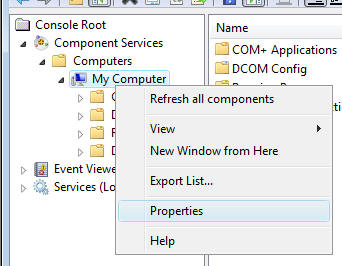
Accessing server-specific DCOM settings
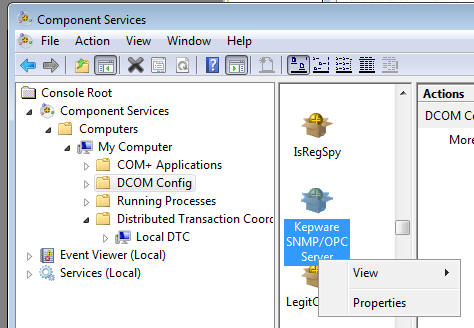
Console root…Component services…Computer…My Computer…DCom Config
Right-click the Server and choose “Properties”
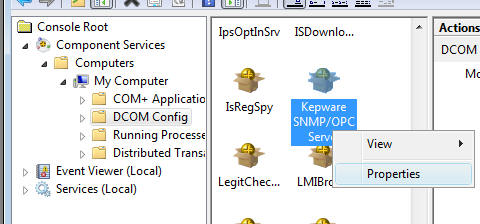
Configuring DCOM for OPC Access
Make sure you have read the information above.
Note: After making DCOM changes you should reboot the computer.
Both computers (Client and Server)
- Turn off any firewalls including the Windows firewall
There are documents that describe the correct settings for the Windows firewall to allow OPC communication. We suggest that you turn off the firewalls on both machines, get the connection working, then configure the firewall. - Set the following information in the DCOM system-wide settings on both computers
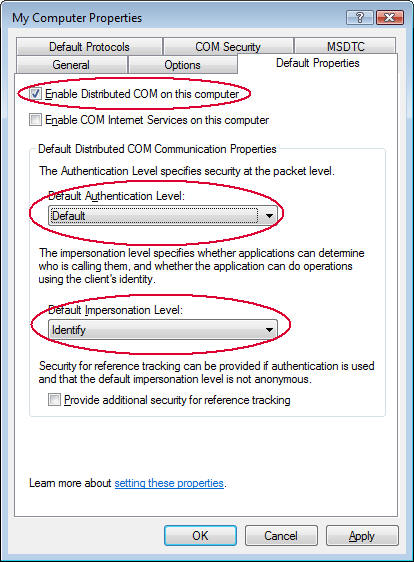
Default Properties tab
- Enable distributed COM on this computer
- Default Authentication level: Default or Connect
- Default Impersonation level: Identify
Server computer
- Set the following information in the DCOM system-wide settings
COM Security tab
-
- Click [Edit Limits] button for both “Access Permissions” and “Launch and Activate Permissions”
Note: “Edit Limits” sets the limits for DCOM permissions. Any request for permission beyond these limits will be denied. Therefore, it is important that these settings are not more restrictive that those desired by a specific OPC server or opcenum.
- Click [Edit Limits] button for both “Access Permissions” and “Launch and Activate Permissions”
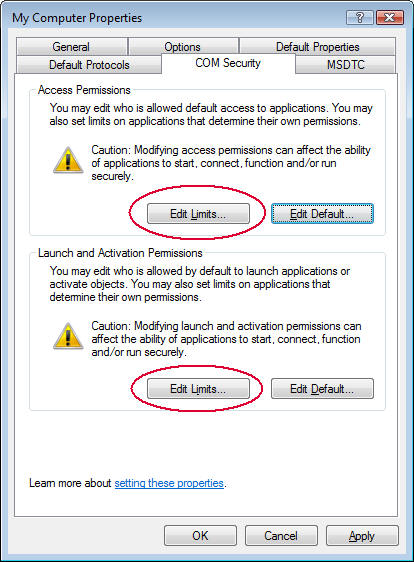
-
- Add ANONYMOUS LOGON with full access for local and remote settings
Note: this is required for opcenum to work properly
- Add ANONYMOUS LOGON with full access for local and remote settings
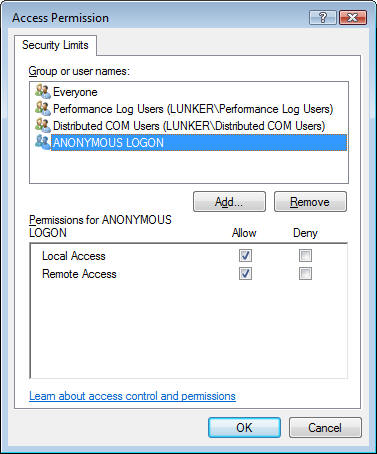
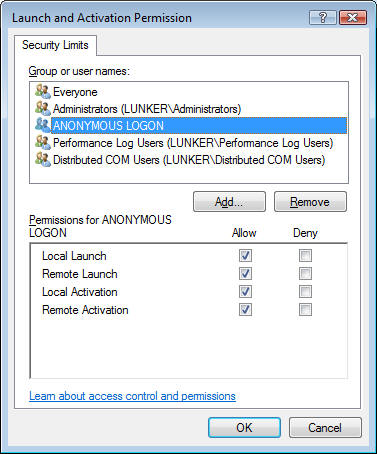
-
- Make sure that the Everyone group has full access for local and remote settings
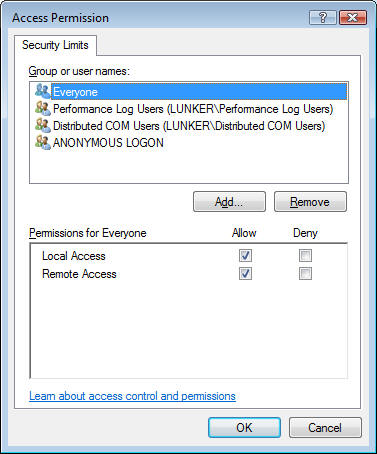
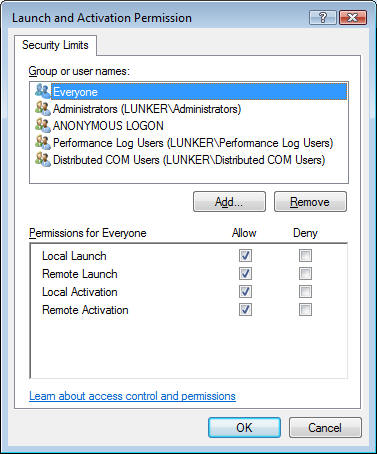
- Click [Edit Default] button for both “Access Permissions” and “Launch and Activate Permissions”
Note that these settings are used if the server-specific DCOM settings specify “use default” and not “custom”- If ClientUser is an authenticated user on the server computer, make sure that ClientUser or the Everyone group has full access for local and remote settings (as shown below)
- If ClientUser is not an authenticated user on the server computer, add “ANONYMOUS LOGON” and “Everyone” with full access for local and remote settings. If “Everyone” is not granted remote access for “Launch and Activation Permissions” and ClientUser is not authenticated on the server computer, you will not be able to connect to an OPC Server that uses the default permissions.
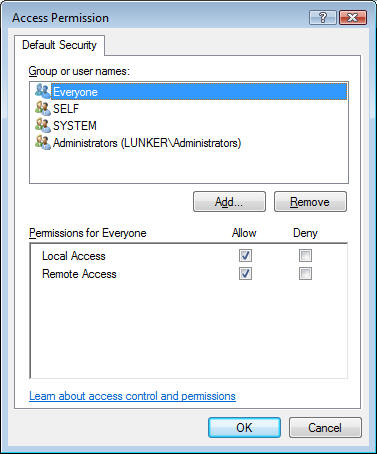
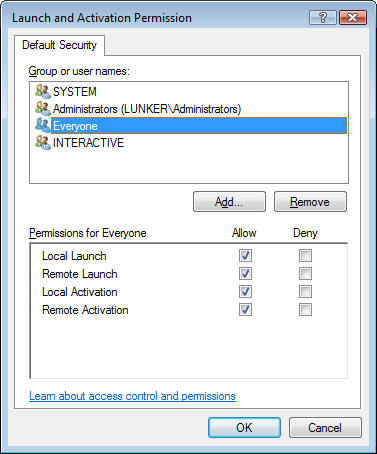
- OPCEnum:
Exele’s OPC products allow you to “Query” a computer for a list of its OPC Servers. This function is provided through the DCOM server OPCENUM on the server computer.- Access the server-specific settings for opcenum
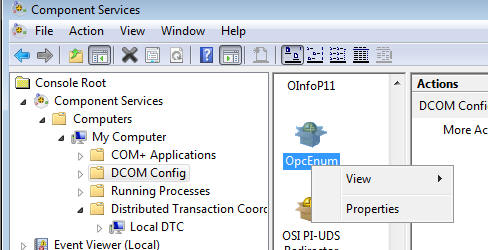
-
- Verify: Authentication level = none
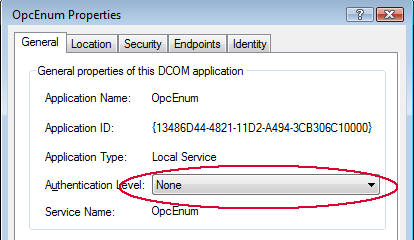
-
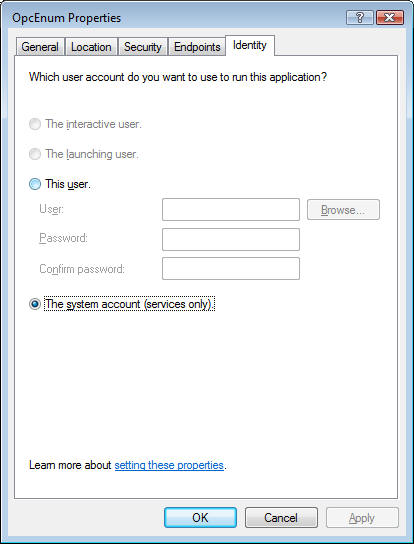
- Select the Identity tab
Here, you will see the user account that will run the OPC server
OPCEnum should be set to run as a service. Therefore, “the system account” should be selected
- Select the Identity tab
-
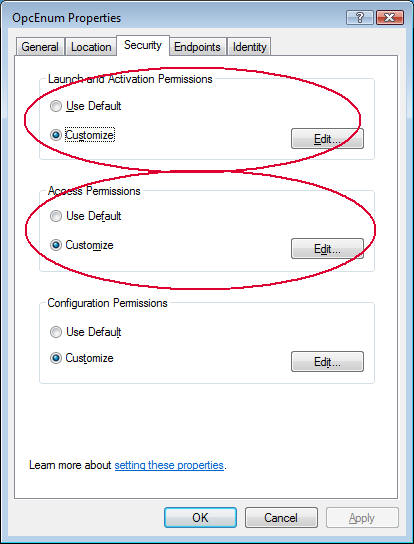
- Select the Security tab
The top 2 permission sets are “Launch and Activation Permissions” and “Access Permissions”
- Select the Security tab
-
-
- If “Use Default” is selected, the system-wide default settings we previous set (see [Edit Defaults] button above) are used. Since we allowed access to ClientUser for the system-wide default settings, no further configuration is necessary.
- If “Customize” is selected, the system-wide default permissions we previously set are not used. Therefore, you need to click both [Edit] buttons and verify that ClientUser or ClientUserGroup is granted full local and remote access.
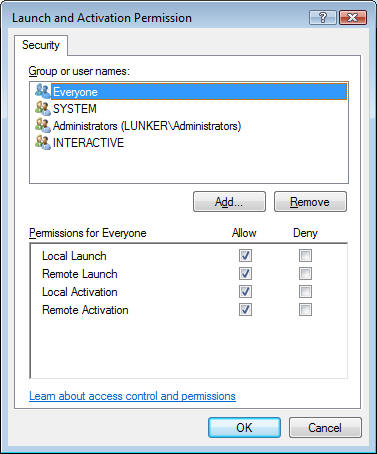
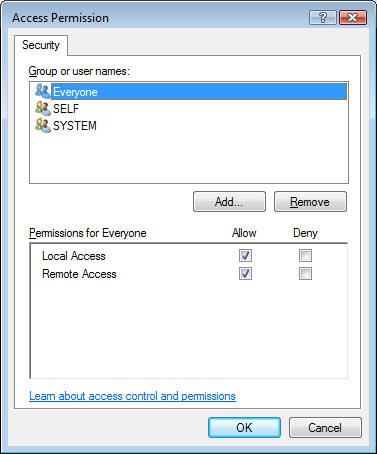
If ClientUser is an authenticated user on the server computer, make sure that ClientUser or the Everyone group has full access for local and remote settings for both [Edit] button settings (as shown below).
-
-
-
- If ClientUser is not an authenticated user on the server computer, add “ANONYMOUS LOGON” and “Everyone” with full access for local and remote settings for both [Edit] button settings.
-
- OPC Server settings
We need to make sure that ClientUser can connect to the OPC Server.
The DCOM Server for your OPC Server may use the system-wide default DCOM settings OR it may override these settings with its own.
The process here is similar to the process just completed for OPCEnum.- Access the server-specific settings for your OPC Server
-
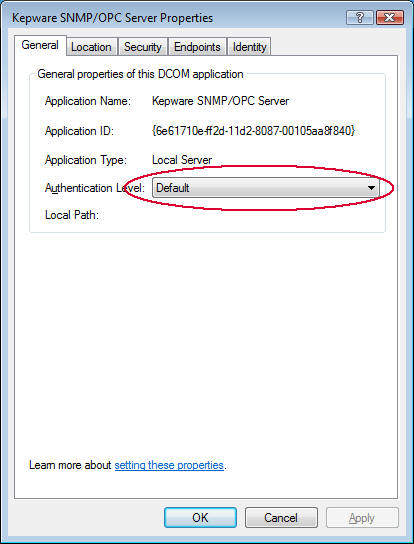
- Verify: Authentication level = Connect or Default
-
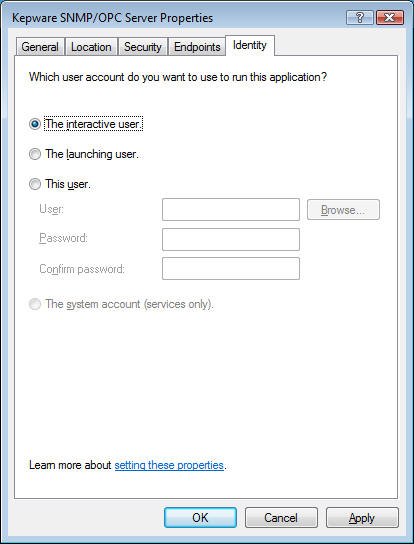
- Select the Identity tab
Here, you will see the user account that will run the OPC server- Use “The interactive user” if someone is always logged onto the server computer
- Use “The system account” if the OPC server is running as a Windows service
- Use “The launching user” to run the OPC Server as the client user. You can use “Launching user” to launch as ClientUser, but note that this setting can fail the connection if ClientUser is not authenticated on the server computer.
- Use “This user” if none of the above applies. Make sure the entered user has a high level of permissions (Administrator)
- Select the Identity tab
-
- Select the Security tab and follow the same instructions as for opcenum above (OPCenum, “Select the Security tab”) to set full local and remote access permissions for ClientUser.
Client Computer:
- Use the OPC Client to configure your OPC Server Alias for the server computer. You should able to Query the OPC Servers on the server computer.
- Stop the OPC Client application
- Start the OPC Client application and try to connect to the OPC Server using the [Tag Search] button in the OPC Client.
Connection problems solved?
Hopefully your OPC Server connection issues have been resolved. Don’t forget about our free OPC Test Tool and other Exele Software products.